1How ZayKaf works
Your bank already tells you about every transaction — it sends a notification to your phone. ZayKaf reads those notifications, pulls the numbers out of them, and files them for you.
Three things follow from that, and they explain most of the app:
- It reads notifications, not text messages. ZayKaf never asks for SMS permission and cannot reach your messages.
- Everything happens on your phone. The app has no internet permission at all, so there is no server, no account, and no sign-up. Your data cannot leave the device because there is no channel for it to leave through.
- It only keeps bank transactions. Every notification is checked on the device; anything that isn't a transaction is ignored and never stored.
ZayKaf reads text that banks write in many different ways, so a message can occasionally be read wrongly or missed. Treat it as a way to organise and see your spending — and check your bank's own statement before making a decision that matters.
2First-run setup
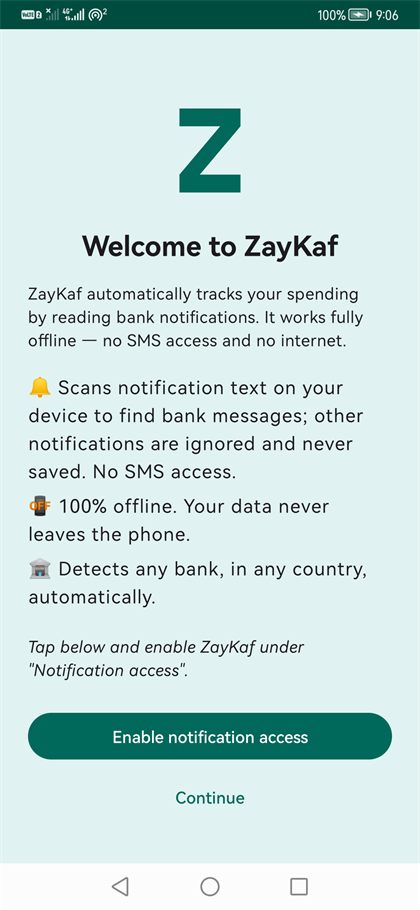
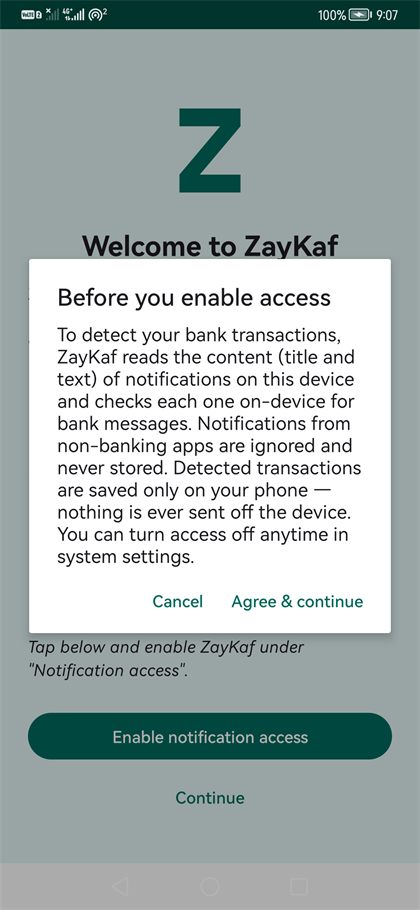
- Open ZayKaf. The welcome screen explains what it does.
- Tap Enable notification access. A short screen tells you precisely what the app will read — the title and text of notifications — and what it does with them.
- Tap Agree & continue. Android's own settings screen opens; find ZayKaf in the list and turn it on. Android will warn you that the app can read notifications — that warning is standard for every app of this kind.
- Come back to ZayKaf. The dashboard now says "Waiting for your first bank transaction…" and stays that way until a bank notification arrives.
Continue skips the permission for now. The app opens, but nothing will be captured until you grant notification access from Settings → Capture reliability.
Turn notification access off at any time from your phone's settings. ZayKaf stops reading new notifications immediately, and every transaction it already saved stays exactly where it is.
3The dashboard
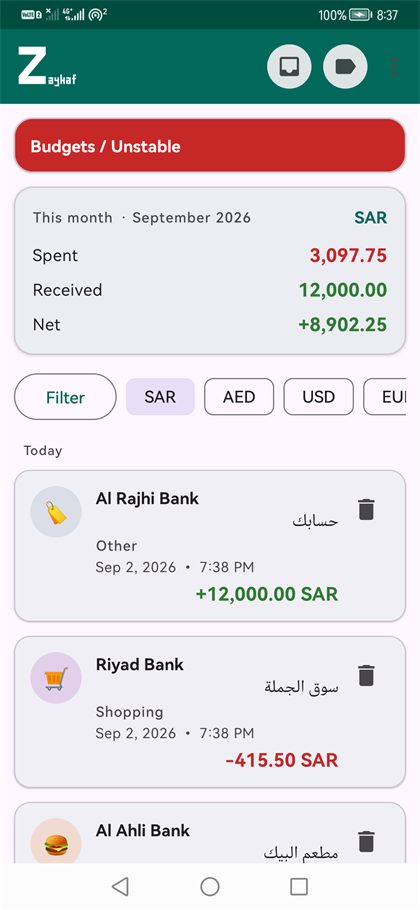
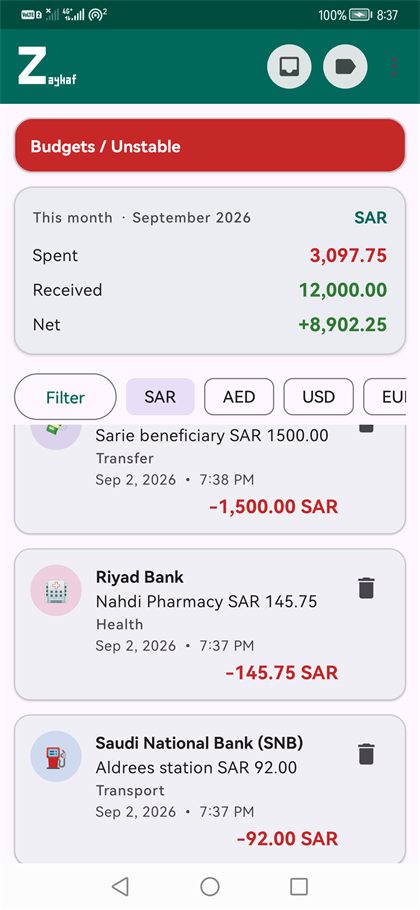
The month summary
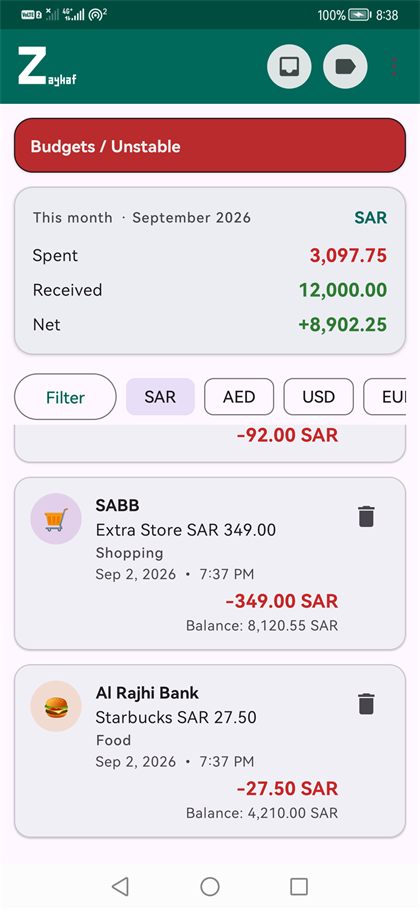
Spent, Received and Net for the current month. Above it sits a Budgets card reading Stable or Unstable — unstable means at least one budget has been crossed. You can hide that card from Settings → Monthly budgets.
Currency chips
ZayKaf never adds different currencies together. A chip appears for every currency you have transactions in, and the summary shows the selected one. Tap another chip to switch.
Reading a transaction card
| Part | What it is |
|---|---|
| Coloured circle | The category emoji. Tap it to edit the transaction. |
| Bank name | The bank the notification came from. |
| Merchant | Pulled out of the message — a shop, a person, an ATM. |
| Category | Assigned automatically. Tap it to change it. |
| Date & time | Taken from the message when it states one, otherwise from when the notification arrived. |
| Amount | Red for money out, green for money in. |
| Balance | Shown only when the bank included it in the message. |
| Bin icon | Deletes that transaction after a confirmation. |
Days are separated by headers — Today, Yesterday, then dates.
Editing a transaction
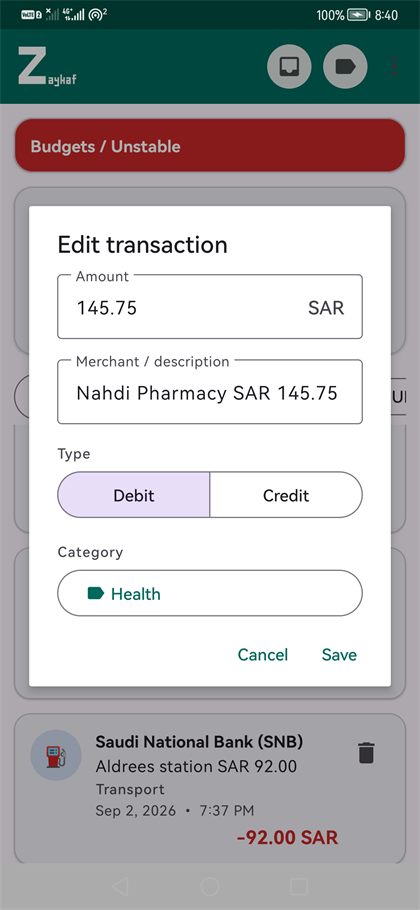
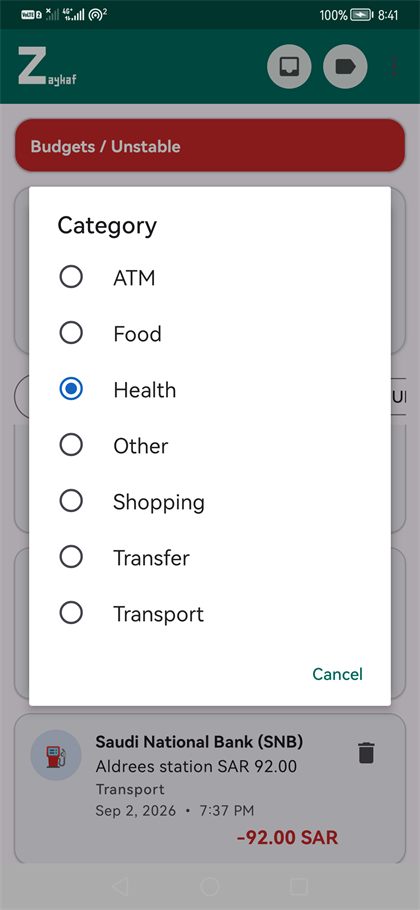
Tap the emoji circle or the category label on any card. You can fix the amount, rewrite the merchant, flip Debit / Credit if the message was read backwards, and change the category. Save applies it.
When you change a category, ZayKaf offers to remember it: any future transaction containing that merchant name will use the category you chose. It can also offer to apply the change to similar past transactions at the same time. Everything it learns this way is listed under Settings → Custom rules, and you can delete any of it.
Filtering and searching
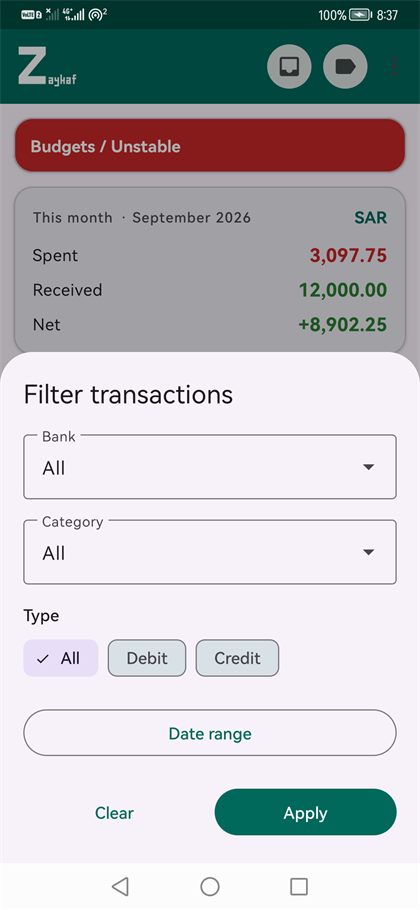
Tap Filter to narrow the list by bank, category, Debit / Credit, or a date range. Filters apply to the summary too, so the totals always match what you are looking at. Clear resets them.
The search icon in the toolbar matches merchant, bank, amount and category — across all currencies, not just the selected chip.
4Reviewing new senders
ZayKaf recognises well-known banks straight away. When a message arrives from a sender it does not know, but the text reads like a transaction — a banking phrase and a real amount with a currency — it asks you instead of guessing.
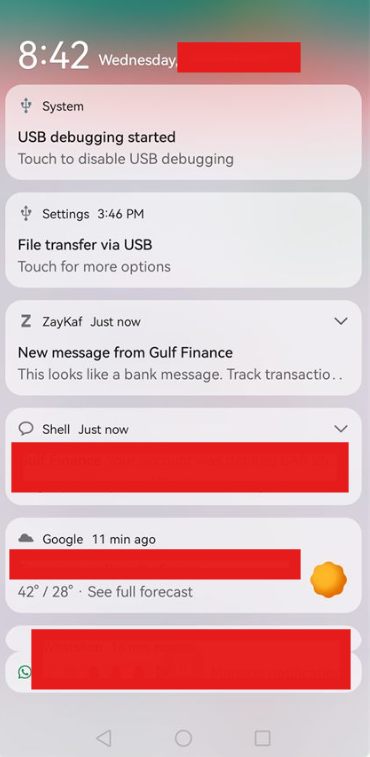
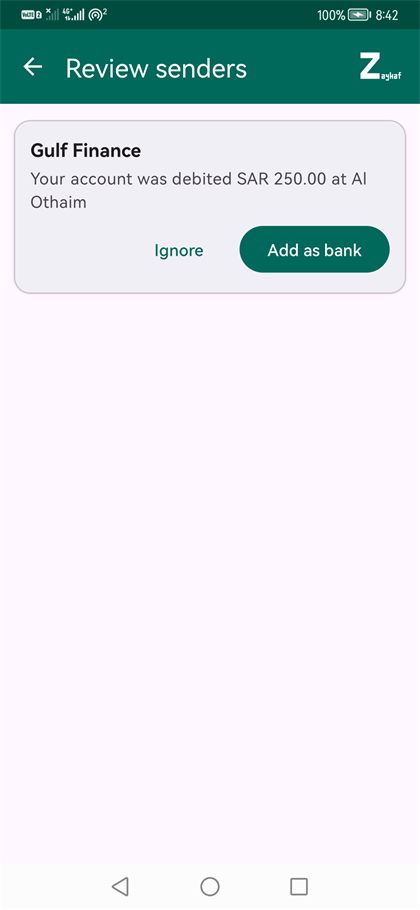
- Add as bank — the sender is saved as a bank, and its messages are tracked from then on.
- Ignore — the sender is remembered as "not a bank" and you are never asked about it again.
You can answer straight from the notification, or later from the tray icon in the dashboard toolbar. Anything you ignore by mistake can be added manually in Settings → Manage banks.
5Settings, item by item
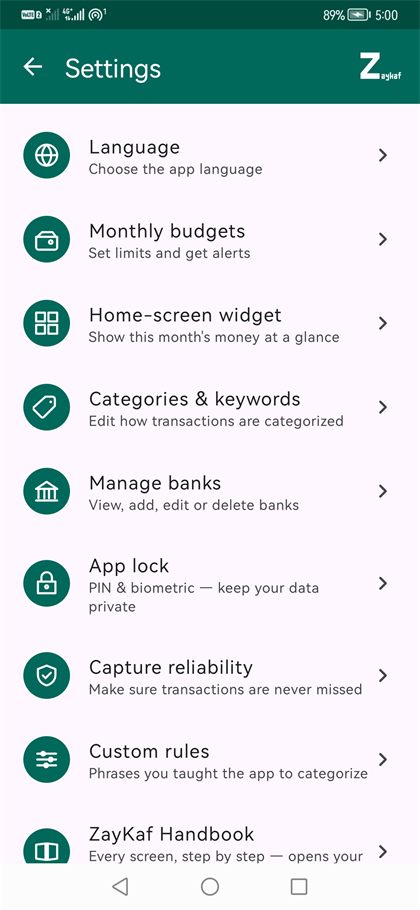
Language
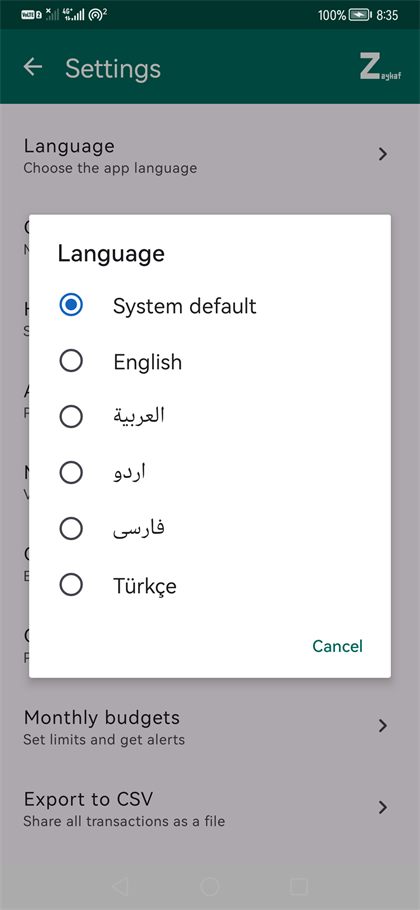
Five languages plus System default: English, العربية, اردو, فارسی, Türkçe. The app switches immediately and remembers your choice. Arabic, Urdu and Persian lay the whole interface out right-to-left.
Monthly budgets
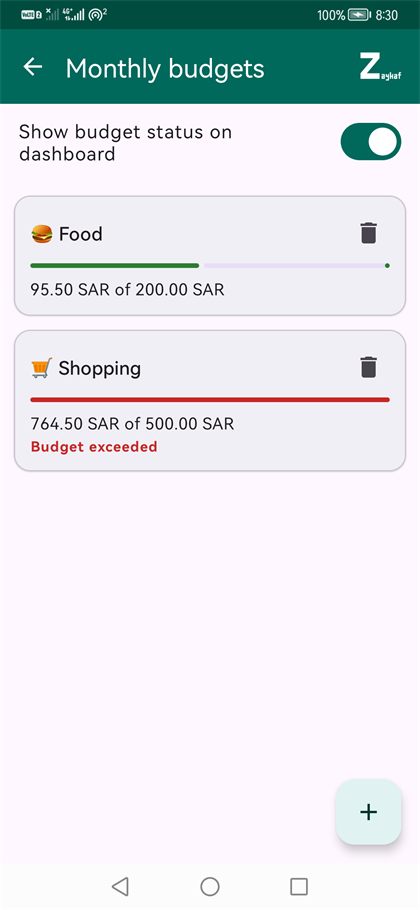
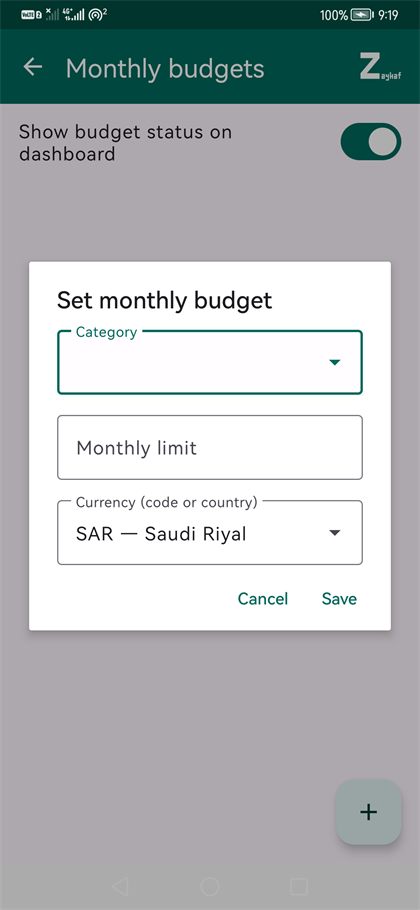
- Tap +.
- Pick the category.
- Enter the monthly limit and choose its currency — you can search the currency list by code, name or country.
- Save.
Each budget shows spent-of-limit with a progress bar that turns red once it is crossed, and you get a notification the moment that happens. The toggle at the top of this screen controls whether the budget card appears on the dashboard.
Budgets are per month and per currency: a budget in SAR only counts SAR transactions.
Home-screen widget
Covered in full in section 6.
Categories & keywords
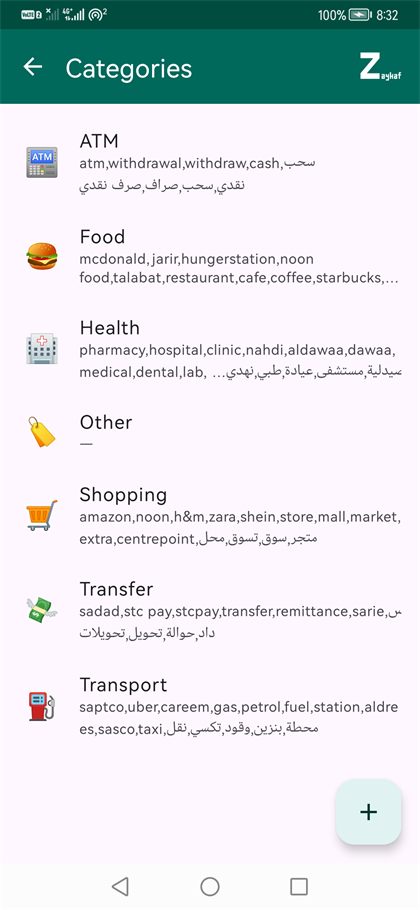
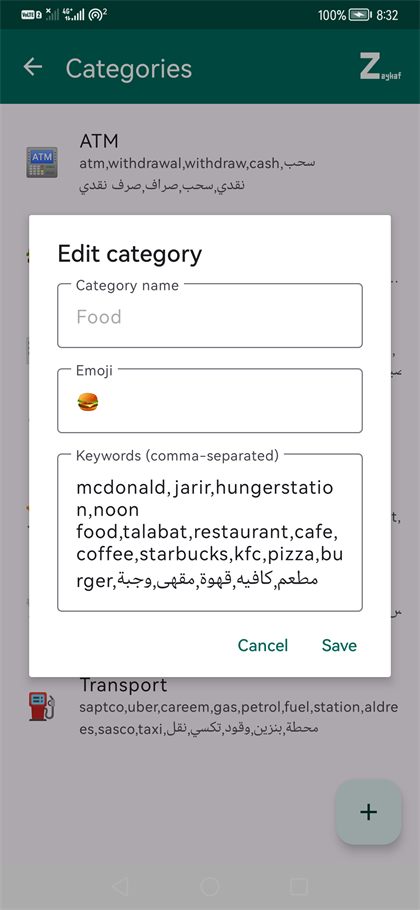
ZayKaf ships with Food, Shopping, Transport, Health, Transfer, ATM and Other. Each carries a list of keywords; when one of them appears in a transaction's merchant, that category is assigned.
- Tap a category to change its name, emoji or keywords.
- + creates your own category.
- Deleting a category leaves already-labelled transactions untouched.
Other is the fallback and deliberately has no keywords.
If you add a keyword that another category already uses, ZayKaf tells you where it lives and asks which one should keep it — so a merchant can never match two categories at once.
Manage banks
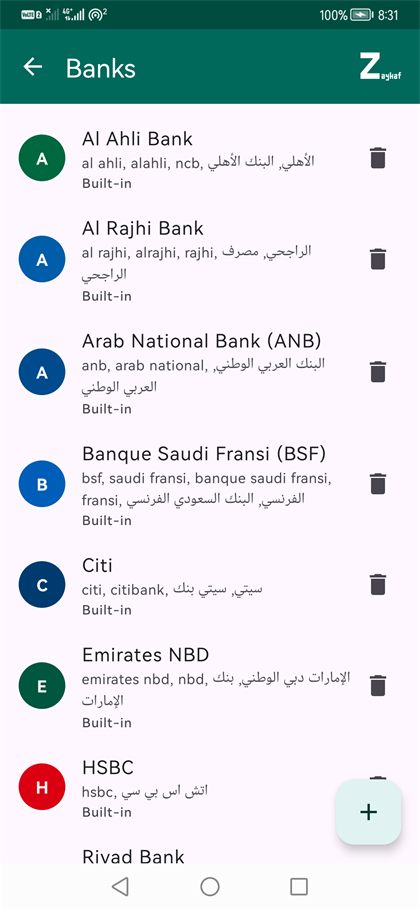
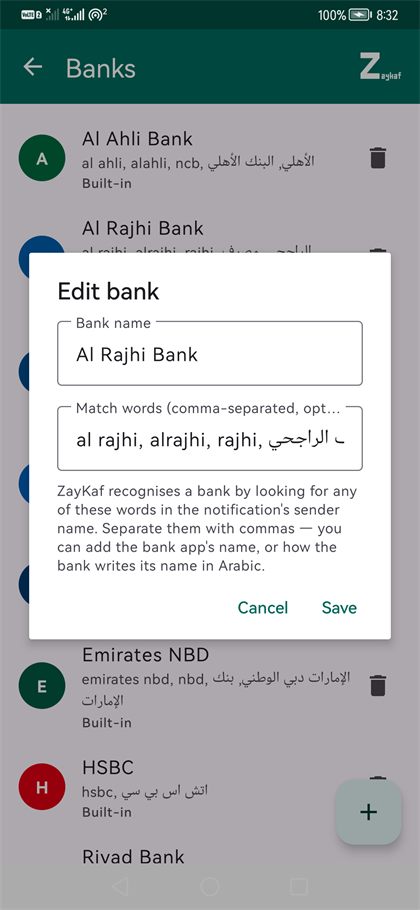
The list holds the banks ZayKaf ships with — marked Built-in — followed by any you added. All of them can be renamed, re-tokenised or deleted.
- Tap a bank to edit its name and match words.
- Bin icon deletes it. Transactions already recorded from that bank stay; only future messages stop being tracked.
- + adds a bank by hand.
Match words — the important part
ZayKaf identifies a bank by looking for any of its match words inside the sender name of the notification. Separate them with commas.
This is the fix for almost every "my bank isn't being captured" problem: open the bank, look at how the sender name actually appears on your phone, and add it. You can add the bank app's name, an abbreviation, or how the bank writes its name.
App lock
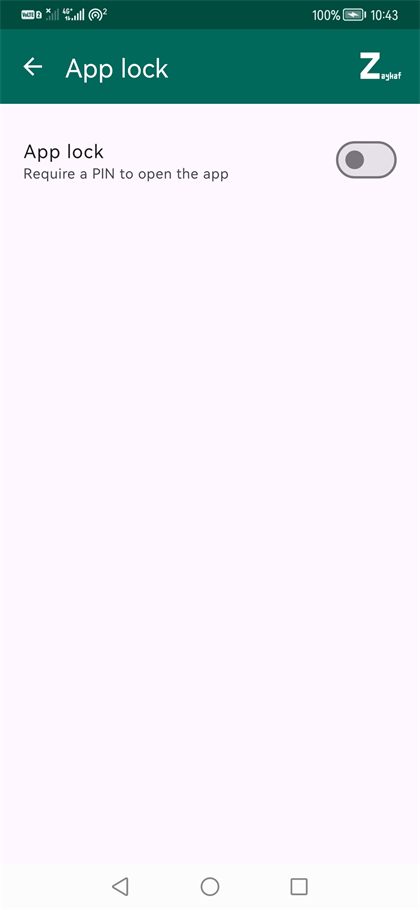
- Turn on App lock and set a PIN of at least four digits, then confirm it.
- Optionally turn on Unlock with biometrics to use your fingerprint or face.
- Change PIN sets a new one; it asks for the current PIN first.
The lock closes over the app whenever it goes to the background. If you forget the PIN, Forgot PIN? lets you confirm with your phone's own lock and set a new one.
The lock protects the screen, not the capture. Transactions keep being recorded in the background while the app is locked.
Capture reliability
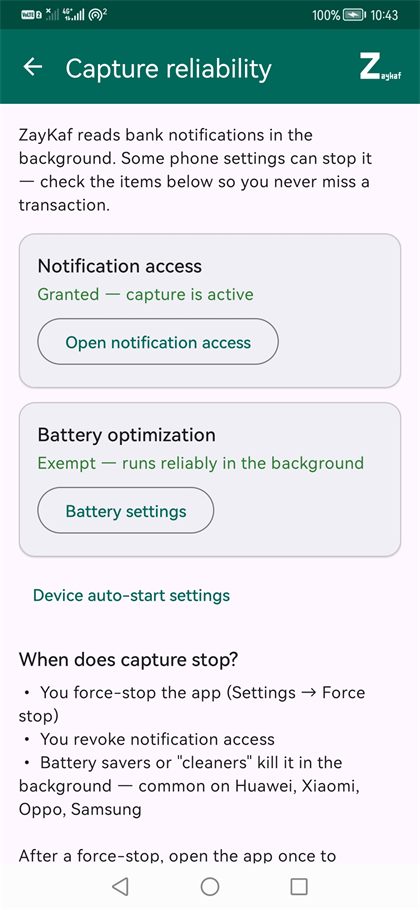
The screen to open when transactions stop appearing. It shows two live checks:
- Notification access — granted, or off with a button to fix it.
- Battery optimization — whether your phone is allowed to freeze ZayKaf in the background.
It also links to your manufacturer's auto-start settings, and lists exactly when capture stops: after you force-stop the app, if you revoke notification access, or when a battery saver or "cleaner" kills it — common on Huawei, Xiaomi, Oppo and Samsung.
If a warning banner appears at the top of the dashboard, it is a shortcut to this screen.
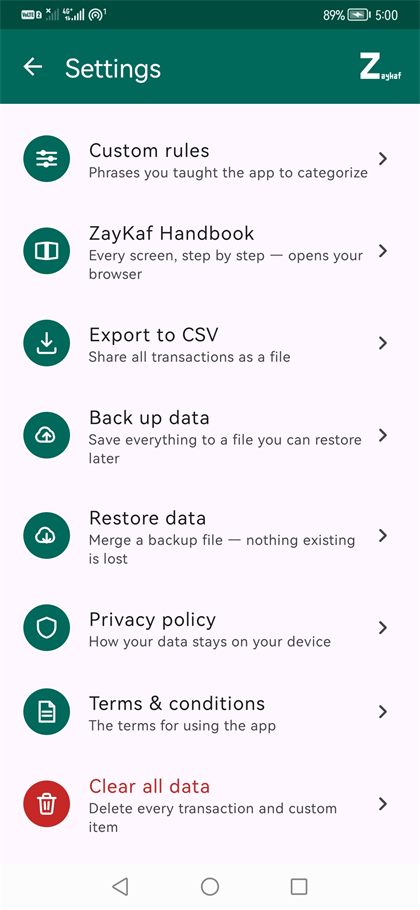
Custom rules
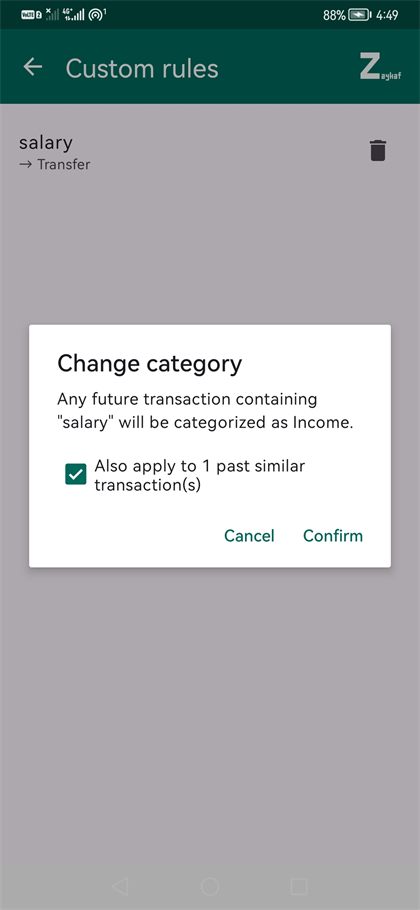
Every categorisation you taught the app by correcting a transaction is listed here, as phrase → category. The screen is empty until you correct something — that is the only way rules are created.
Changing a rule's category
- Tap the rule to open the category picker.
- Choose the new category, and the app tells you what will happen to future transactions carrying that phrase.
- If you already have past transactions carrying the same phrase, a pre-ticked checkbox moves those across too. Untick it to change only the future.
The bin icon deletes the rule, and that phrase goes back to ordinary keyword matching. Deleting — unlike editing — never touches transactions already categorised.
ZayKaf Handbook
Opens this very guide on zaykaf.com, in the app language you have chosen.
Your browser opens it, not the app. ZayKaf itself still has no internet permission — this is the one settings entry that takes you outside the app.
Export to CSV
Writes every transaction to a CSV file and opens the share sheet, so you can send it to a spreadsheet, cloud drive or email. Nothing is uploaded by ZayKaf — you choose where it goes.
Back up data
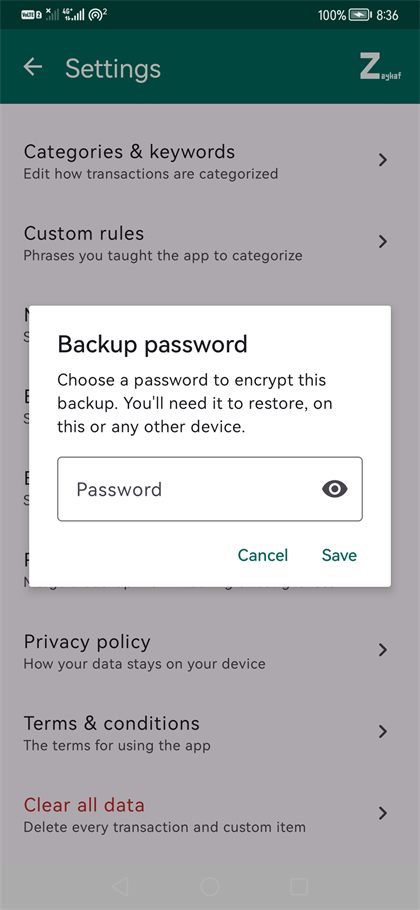
Saves everything — transactions, banks, categories, rules and budgets — into a single file encrypted with AES-256-GCM using a password you choose. Then it opens the share sheet so you can store it wherever you like.
The password is never stored anywhere. If you lose it, the backup cannot be opened — not by you and not by us. There is no reset and no recovery.
Restore data
Pick a backup file and enter its password. The restore merges: existing transactions are kept, and only entries that aren't already there are added. Restoring the same file twice does not create duplicates, and restoring never wipes what you already have.
Privacy policy · Terms & conditions
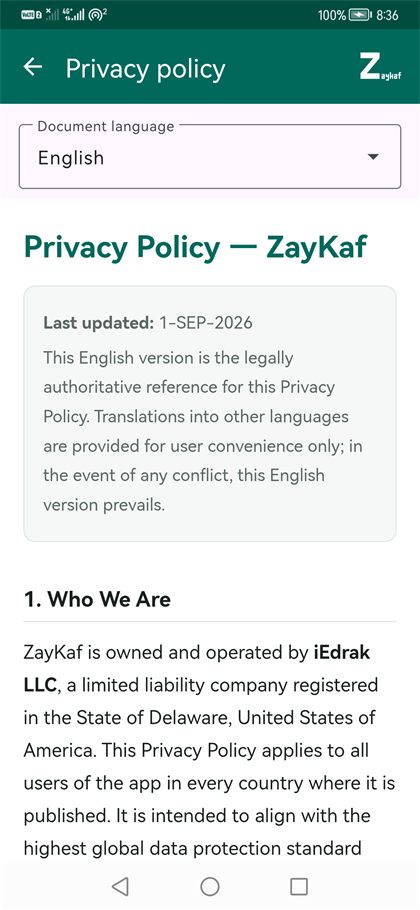
Both documents are bundled inside the app and readable offline. The dropdown at the top switches the document's language independently of the app's — so you can read the Arabic policy while using the app in English.
Clear all data
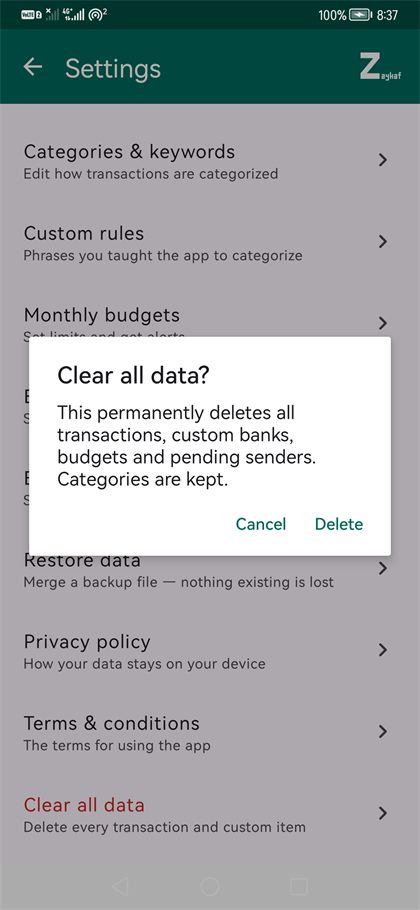
Deletes every transaction, every bank you added, every budget and every pending sender, after a confirmation. Categories are kept, and the built-in bank list is restored to its original state.
This cannot be undone. Back up first if there is any chance you'll want the data again.
6The home-screen widget
ZayKaf can put your month on the home screen. There are two kinds, and you can place as many as you like — each configured separately.
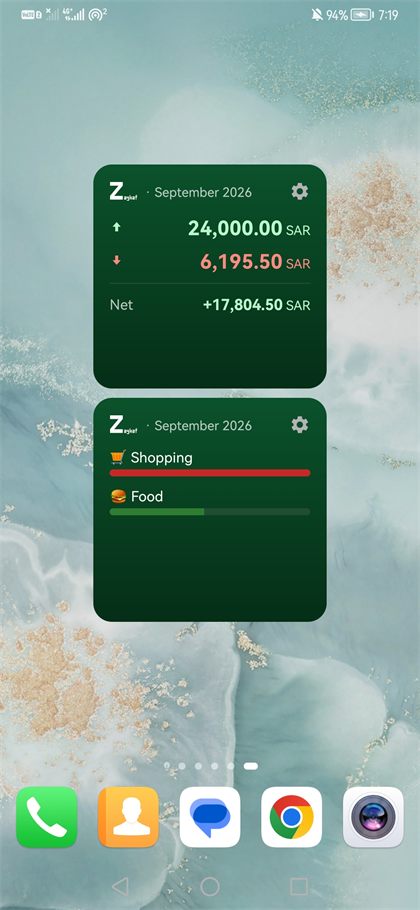
| Widget | Shows |
|---|---|
| Spending summary | The month, money in ↑, money out ↓ and the net figure. |
| Budget status | Your three most critical budgets as progress bars — red once crossed. |
Adding one
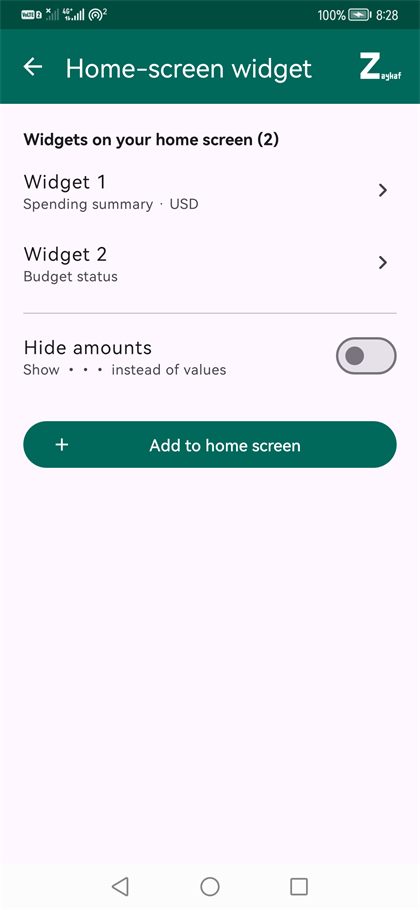
Open Settings → Home-screen widget and tap Add to home screen. If your launcher doesn't support adding it from inside the app, add it the usual way instead: long-press an empty spot on the home screen, open the widget list and pick ZayKaf.
Every widget you have placed is listed at the top of that screen, named Widget 1, Widget 2 and so on in the order you added them, with a summary of what each shows.
Changing what a widget shows
Two ways in: tap the gear icon inside the widget itself, or open Settings → Home-screen widget and tap the widget in the list.
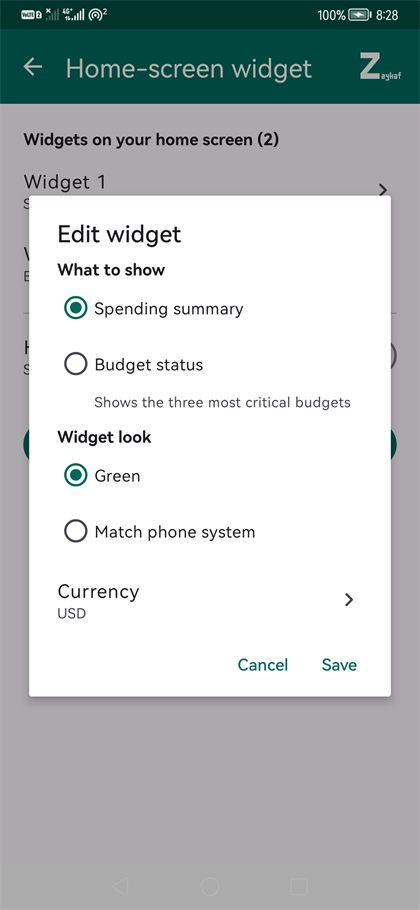
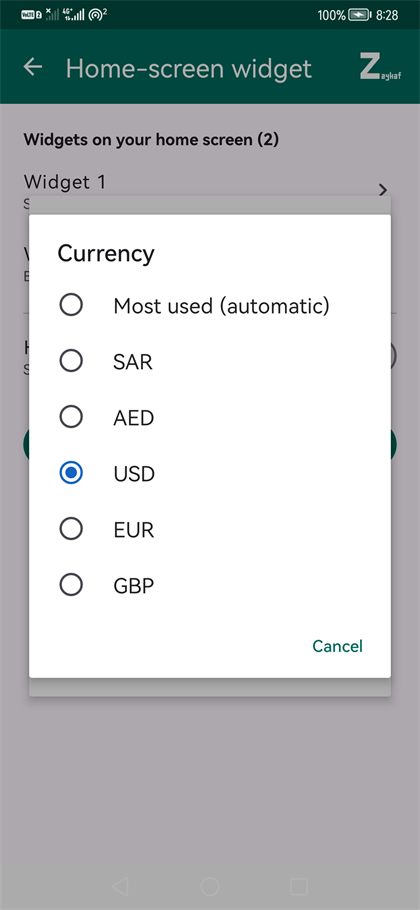
| Option | Choices | Applies to |
|---|---|---|
| What to show | Spending summary · Budget status | This widget |
| Widget look | Green (the app's colour) · Match phone system (light/dark) | This widget |
| Currency | A specific currency, or Most used (automatic) | This widget |
| Hide amounts | Shows ••• instead of the numbers | All widgets |
Switch a widget to Budget status and the currency option disappears. That is deliberate: each budget already carries its own currency, so there is nothing for the widget to choose.
What a change looks like
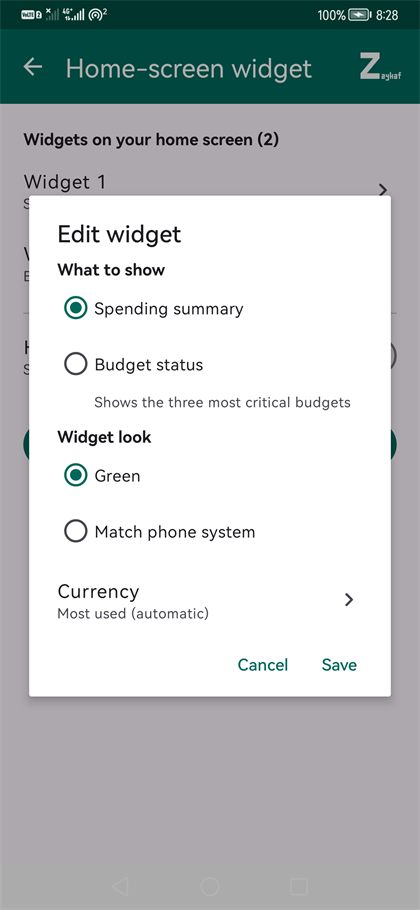
Most used (automatic) means the widget always shows whichever currency you transact in most, without you having to revisit the setting.
7Troubleshooting
My bank's messages aren't being captured
- Open Settings → Capture reliability and make sure notification access is granted.
- Look at how your bank's notification actually appears — the sender name at the top.
- Open Settings → Manage banks, find the bank (or add it), and put that sender name into its match words.
If the sender is unknown to ZayKaf and the message reads like a transaction, you should instead get an "Add as bank?" prompt. If you dismissed it earlier, check Review senders.
Capture stopped working
Almost always the battery manager. Open Settings → Capture reliability and work through the checks. After a force-stop, opening the app once is enough to resume. ZayKaf also re-attaches itself after a reboot and re-reads any bank notification still showing in the tray, so a short interruption doesn't lose the transaction.
A transaction has the wrong category
Tap its category label, choose the right one, and let ZayKaf remember it. Future transactions from that merchant follow the rule, and you can apply it to past ones at the same time.
A transaction has the wrong amount or direction
Tap the emoji circle to open it and correct the amount, the merchant, or Debit/Credit. Banks word their messages very differently, so an occasional mis-read is expected.
My widget shows nothing or disappeared
A widget stops updating if the app was uninstalled or its data cleared. Remove it from the home screen and add it again from Settings → Home-screen widget.
8Questions
Does ZayKaf read my text messages?
No. It never requests SMS permission and cannot reach your messages. It reads notifications — what apps display on your screen — which is a different mechanism that you grant by hand and can revoke at any time.
How does it work with no internet?
Everything happens on the phone: reading the notification text, pulling out the amount and merchant, categorising it, and storing it in a local database. There is no server in the picture, which is why the app doesn't request internet permission at all.
What if my bank changes how its notifications are written?
A transaction may be read partially or missed. You can correct any transaction by hand, and adjust the bank's match words so it is recognised again.
What happens to my data if I uninstall?
It is deleted with the app, because it was never anywhere else. Use Back up data first if you want to keep it — and remember the password, because the backup cannot be opened without it.
Is there an account or a subscription?
No. No account, no sign-up, no ads, and nothing to pay.